The 60 days begin only after successful activation inside the desktop app. Creating a website account, downloading Auto-KJ, or verifying your email does not start the clock. No payment card is required, and the trial does not automatically bill you.
Keep the written guide nearby
Jump to the full narration script
Find the right signup screen
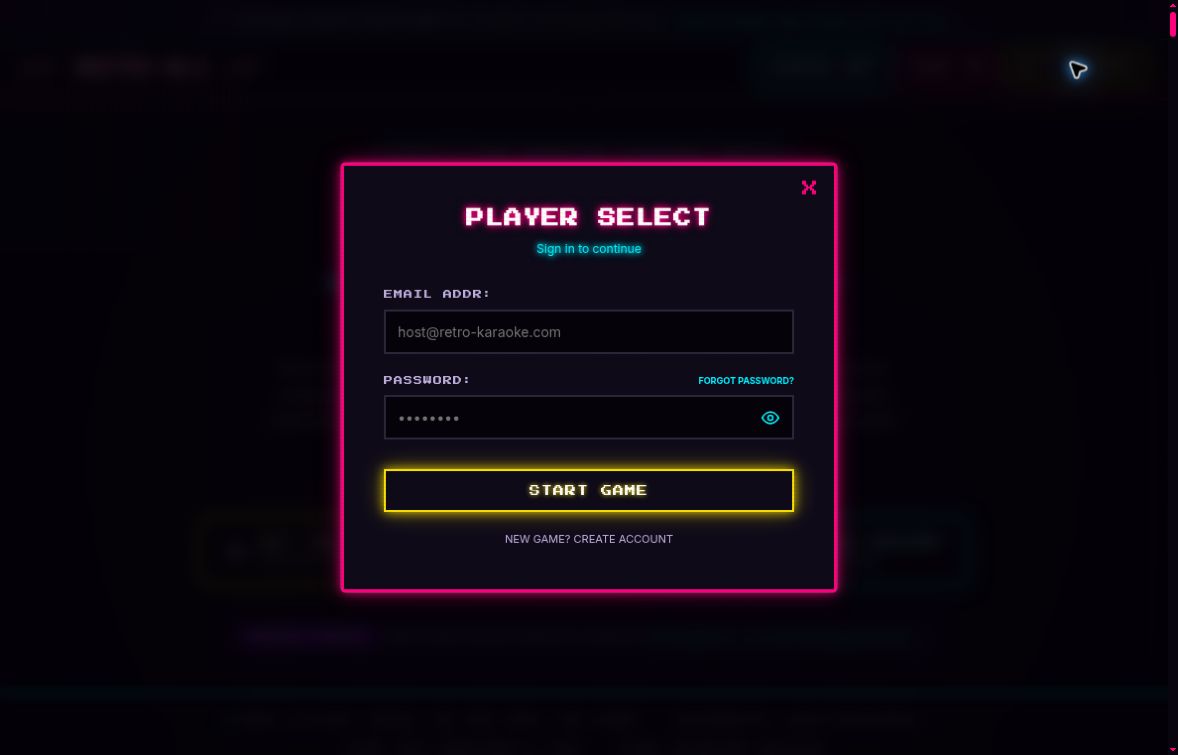
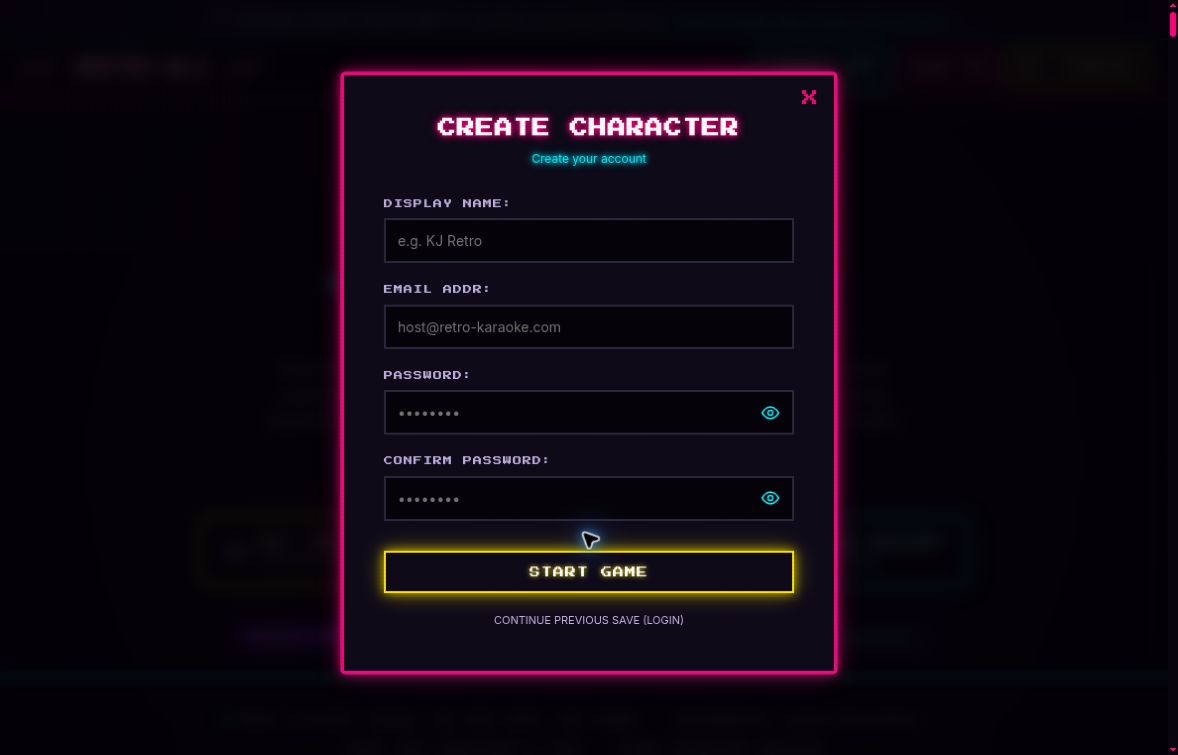
GET STARTED opens PLAYER SELECT, the sign-in screen. Choose NEW GAME? CREATE ACCOUNT to open CREATE CHARACTER. Enter DISPLAY NAME, EMAIL ADDR, PASSWORD, and CONFIRM PASSWORD, then choose START GAME. Choose your own password; the eye icon shows or hides your entry. An existing account can use FORGOT PASSWORD? from the sign-in screen.
Full narration script
All 16 chapters from the supplied narration script.
00:00 | Your free 60-day trial
Let's get your free sixty-day Auto-KJ trial ready, one step at a time. We'll create a free account on the website, open the desktop app, verify your email, and activate the trial. No payment card is required, and the trial does not automatically bill you. The sixty days begin only after successful activation. The website images in this video are real screenshots. The desktop steps are clearly labeled illustrations, checked against version one point thirty point zero. No account or trial was activated to make this walkthrough.
00:36 | Before you begin
Before you begin, choose the computer you intend to use for the trial. Have an email inbox you can open now, and keep that computer online. The trial checks both your account and the recognized computer, so a different account or a reinstall will not give you another trial. If you already have an Auto-KJ account, use it. If the app is already installed, you can skip the download and go straight to the trial panel.
01:03 | Open the account form
In your browser, open auto-kj.com and choose Get Started. The window that appears is called Player Select. This is the sign-in screen. To create an account, look just below the large Start Game button and choose New Game? Create Account. If you already have an account, enter your email and existing password here instead. Forgot your password? Enter your account email and use Forgot Password, then follow the reset instructions.
01:36 | Choose and confirm your password
The new-account window says Create Character. Enter your display name, then your email address. Check the email spelling carefully. In Password, choose a unique account password and save it securely. Enter that same password again in Confirm Password. The two entries must match. The eye icon lets you show or hide what you typed. You choose this password yourself; you do not need to buy a code or wait for one by email. When all four fields are ready, choose Start Game to create your account.
02:13 | Your account is still Free
After registration, your account is Free. Creating it has not started the sixty-day clock. Keep your account email and chosen password ready for the desktop app. You may also see a permanent License Key in the dashboard or welcome email. That is a different credential, and seeing it does not prove the trial is active. We'll use the email-and-password route. The verification code comes later. A singer's show code is unrelated to this signup.
02:43 | Download the right desktop app
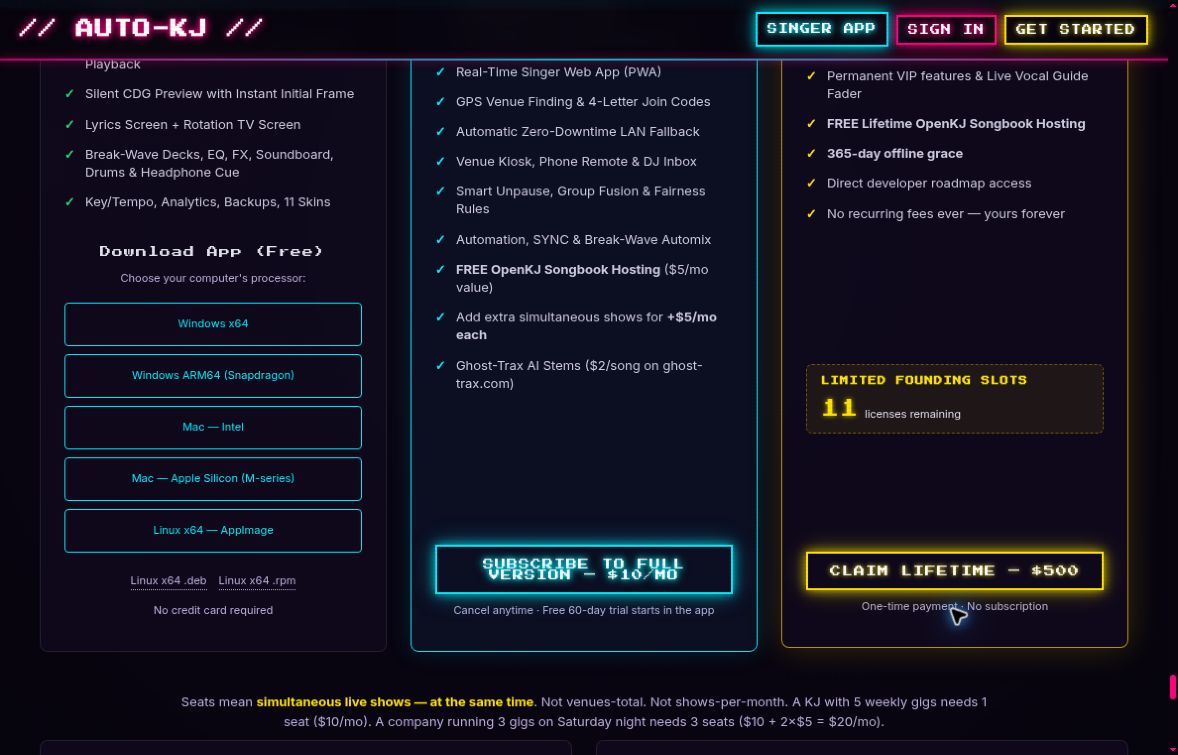
Back on the official website, find the Free version card and Download App, Free. Match both your operating system and your processor. Most Intel or AMD Windows computers use Windows x sixty-four. Snapdragon computers use Windows A R M sixty-four. On a Mac, choose Intel or Apple Silicon, M-series, to match your computer. Linux has x sixty-four downloads, including AppImage and the appropriate package options. Install and open the desktop app. The Singer App is a different app. You do not need the Full version subscription button or the Full version, paid once, button for this trial.
03:23 | First launch: open the trial
On a first launch, choose Set up my show. Next, choose the Full version or the free sixty-day trial. Under Do you already have a license key, choose Start my free sixty-day trial. These choices open the trial form. They do not activate the trial yet. This is an illustrated guide to the app labels, so the arrangement on your screen may look a little different.
03:50 | Already installed? Use Settings
If you have already been using the app, open Settings and find License Activation. Choose Try Full version for sixty days. The license section can be farther down when a license is already present. Both routes lead to the same trial panel. If the option is missing in an older installation, update from the official download. If it is still unavailable, contact support rather than buying a plan just to follow this trial guide.
04:19 | Sign in to the trial panel
In the trial panel, enter Account email and Account password, then choose Sign in. Use the same password you created on the website. Do not put your password into a License Key field. There is an optional Use an existing license key route, but this walkthrough does not require it. Signing in still does not start the trial. Wait for the email-verification controls to appear.
04:47 | Request and copy the email code
Choose Send verification code inside the desktop trial panel. Leave Auto-KJ open, and check your inbox for Verify your Auto-KJ email. Check spam or junk if necessary. Copy the entire sixty-four-character code. It uses lowercase letters a through f and digits zero through nine. This is a long code, not a six-digit number. It expires after fifteen minutes, and you can request another only once every five minutes. Use the newest complete code without extra spaces.
05:24 | Verify your email
Return to the trial panel and paste the full code into Email verification code. Choose Verify email, then wait until the panel says Email verified. Sending a code is not the same as verifying it. If Verify email is disabled, check that you copied all sixty-four characters and removed any space at either end. If the code expired, request a fresh one after the resend cooldown. Email verified is an important checkpoint, but the trial has still not begun.
05:59 | Read, consent, and activate
Next, read the device-recognition and retention disclosure in your app. Use the actual retention period shown there; this video does not substitute a guessed number. The disclosure explains how coded email and device identifiers are retained to prevent repeat trials. If the server has not supplied its retention policy, stop and contact support. When you are ready, tick the agreement to device recognition and the fixed sixty-day trial, with no card or automatic billing. Then choose Start my sixty-day trial. Successful activation starts the clock immediately.
06:40 | Confirm the trial is active
Now confirm the result inside the desktop app. Look for Full version trial active, and an Ends date and time. In the first-run wizard, you may see Trial active, Full version until your displayed date, with Next available. This illustration shows what to look for; it is not a recording of a real activation. A welcome email, a website dashboard, or Email verified alone is not enough. Write down the end date you actually see. If you activated earlier, Check existing trial retrieves the original deadline. It does not start another sixty days.
07:22 | What the 60 days mean
The trial is sixty consecutive days, or fourteen hundred and forty elapsed hours, from activation. It enables Full version on that computer, with one simultaneous live show. Bring your own properly licensed karaoke files; songs, paid add-ons, and paid Ghost-Trax credits are not included. A successfully cached trial can work offline until its original end time. When it ends, the app returns to the Free version, and your library and show data are preserved. There is no automatic trial charge. Choosing the Full version later is a separate action.
07:58 | If something gets stuck
If you get stuck, check the step you reached. An email-already-registered message means you should sign in to your existing account. A missing verification email means checking the account address, spam folder, and resend timer. A disabled Start Trial button means checking for Email verified, the retention disclosure, and the consent checkbox. A previously used trial or shared computer may need support. Contact support at auto-kj.com with your operating system, app version, and exact error. Never send your password, license key, or verification code.
08:38 | Your final checklist
Here's the quick recap. Create your free account, choosing and confirming your password. Open the desktop trial panel, sign in, and verify the full email code. Read the disclosure, agree when you're ready, and start the trial. Finally, confirm that the desktop app says the trial is active and shows your end date. Then continue setup, choose your karaoke folder, and get your show ready. You can pause or replay any step, and keep the written guide nearby. Enjoy your Auto-KJ trial.