Inside Auto-KJ: The Library Management Tab
Choose preferred brands, sort out duplicate versions, and review files in quarantine before removing them.
By Paul Kircher · August 14, 2026 · 6 min read
Libraries get messy over time. You add new tracks, copy an older drive, and end up with several versions of the same song.
Some files use different artist spellings. Others are named Track01, or turn out to be damaged when you try to play them. Finding all of that by hand takes time.
Cleanup also needs care. Before moving a file, you want to know what it is and whether you'll need it again.
The Library Management tab brings those jobs together. You can set preferred brands, correct song details, and move unwanted copies to quarantine for review.
1. Check your library at a glance
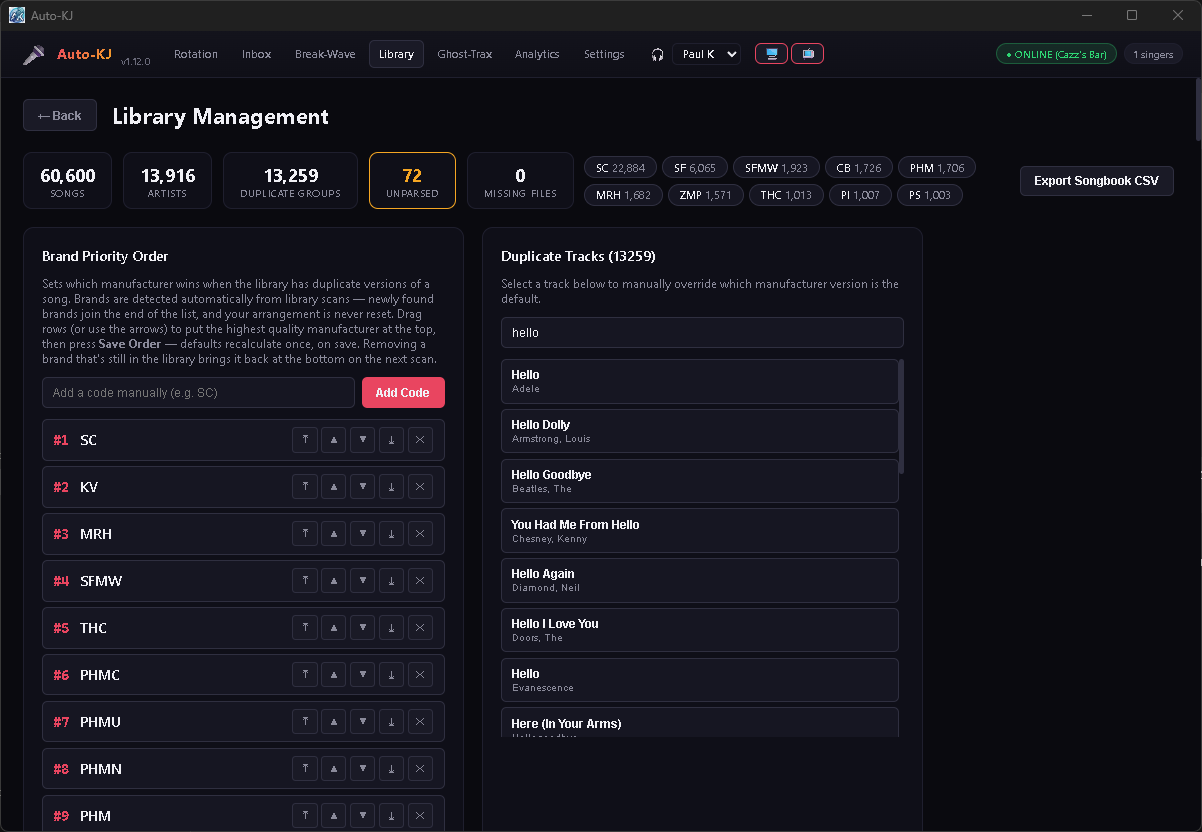
Open the tab and the first thing you see is a row of numbers: how many songs, how many artists, how many duplicate groups, how many unparsed, and how many missing files you're carrying. The brand chips below the counts, such as SC, DK, SF, and PHM, show the manufacturer breakdown.
Click a count in the header to open the related tool and see what needs attention. You can also export your songbook as a CSV for printing or editing.
2. Choose your preferred brands
When you have several versions of a song, brand priority helps you choose which one Auto-KJ loads by default.
The Brand Priority Order card lists every manufacturer detected in your library. Drag Sound Choice above Sunfly, put Pocket Songs under DK, move an unfamiliar code to the bottom, then press Save Order.
The moment you save, Auto-KJ walks your entire library and re-sets the default version of every duplicate according to your ranking. Every 'My Way' uses the pressing you prefer. Saving the ranking updates defaults across the library in one pass.
Dragging brands changes the order locally; the library recalculates defaults when you save. New brands found during a scan join the bottom of the list, keeping your existing order.
3. The Duplicate Resolver: Pick Your Pressing Per Song
When Auto-KJ finds the same song across multiple manufacturers, it groups them. Click any group and you get a clean Version Options table: which pressing is the default, the brand, the disc/track number, and the actual filename.
Click Make Default to choose the version used for requests. The previous default stays in the group, so you can switch back later.
4. Fix Unparsed Songs: Repair, Don't Delete
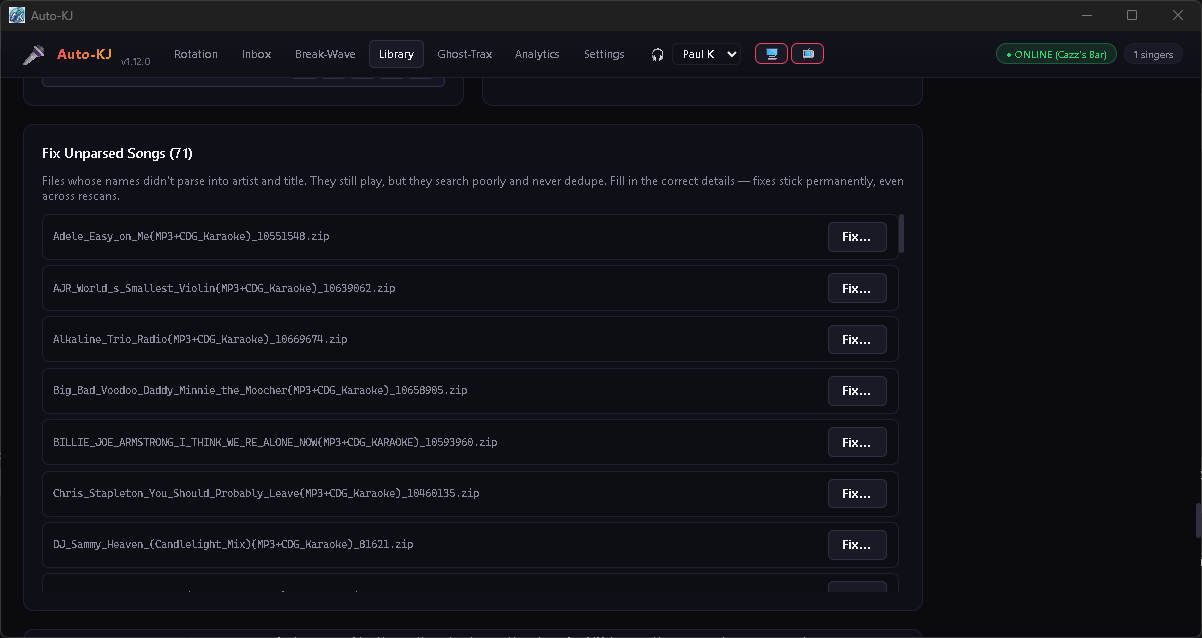
Some filenames don't split cleanly into artist and title. The files may still play, but incorrect details make them harder to find and match with other versions.
The Fix Unparsed Songs card lists them all. Click Fix…, type the right artist, title, and brand, check 'Rename file to match' if you want the file itself cleaned up on disk, and save.
Your corrections remain saved. It survives every future rescan, because Auto-KJ flags your corrections as manual metadata and never lets a directory scan overwrite them.
5. Review cleanup files in quarantine
The cleanup tools move files to quarantine so you can review them before deciding what to keep.
The Quarantine folder sits next to your library and groups files by the reason they were moved. You decide when to empty it.
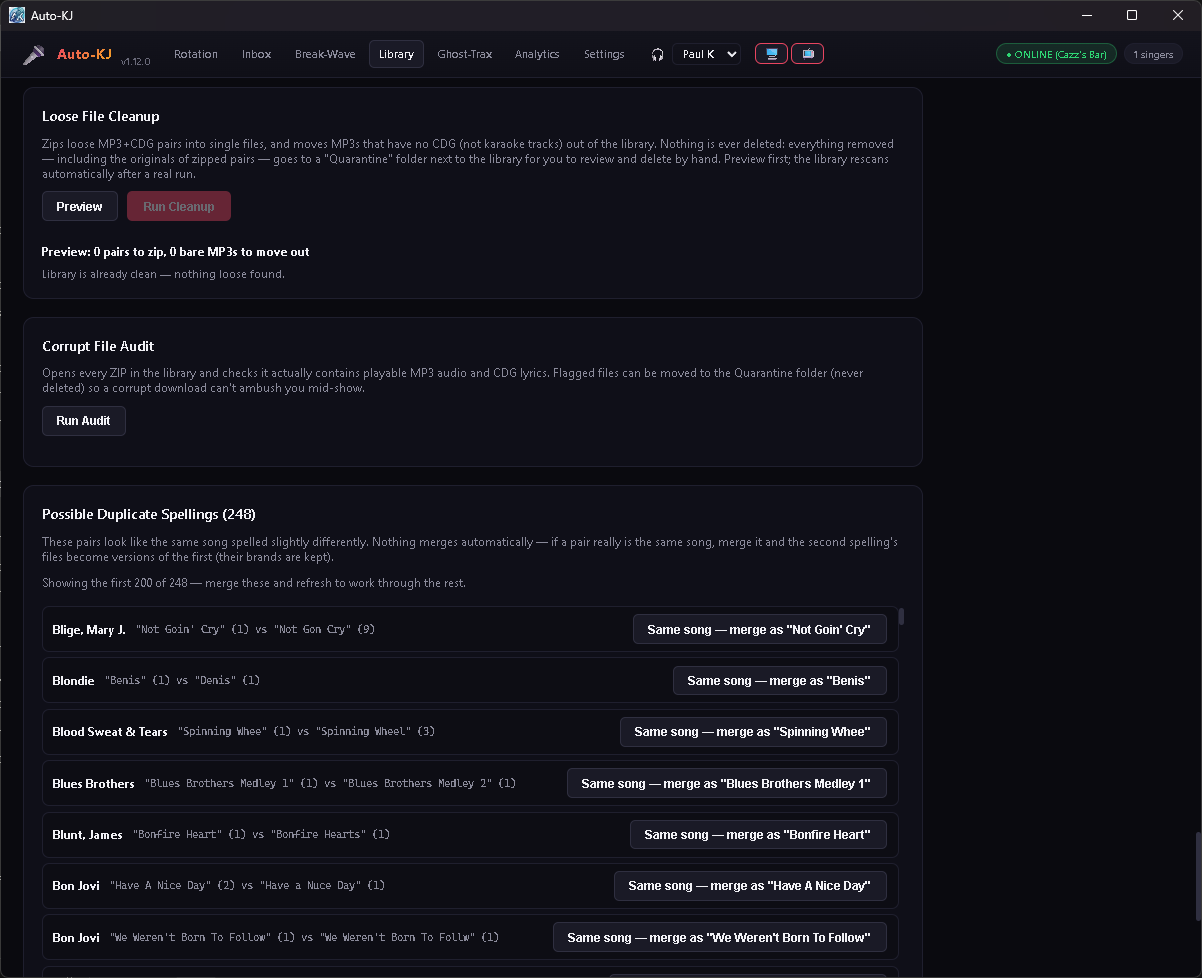
- Loose File Cleanup: finds stray MP3+CDG pairs sitting as two files and zips them into one; finds bare MP3s with no CDG and moves them out.
- Missing Files Audit: detects catalog entries pointing at moved, renamed, or disconnected files before a singer tries to request them.
- Corrupt File Audit: tests every ZIP in your library to verify valid MP3 audio and CDG lyric streams, catching bad files before show night.
- Redundant Copies: finds exact identical pressings duplicated across folders, keeps the primary, and parks duplicates in Quarantine.
6. Running checks on a large library
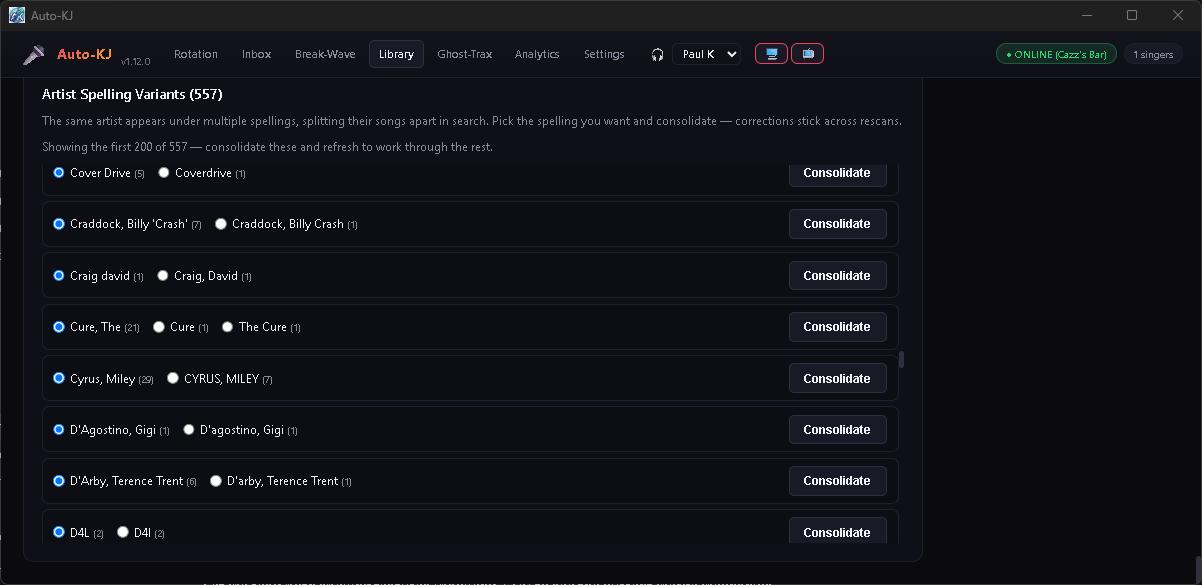
For a library of 60,000 songs, waiting for every report would slow down cleanup. Stats, missing files, redundant copies, duplicate spellings, and artist variants load in parallel in background Rust workers, so one slow report does not blank the screen.
You can review reports as they finish instead of waiting for every check to complete. Larger libraries may still take time to scan.